If your website takes more than three seconds to load, you may already be losing customers. Google found that 53% of mobile visitors leave a page that takes longer than three seconds to load. I see the same pattern on client sites every week. A slow site does not just feel bad. It costs sales, calls, and search rankings. If you want to speed up WordPress website performance, this guide gives you a clear plan. You will learn how to test your site, fix the biggest problems first, and reach a 90+ PageSpeed score without a rebuild.
In this guide, I share the steps I use on real client sites. I will show you what Core Web Vitals mean in plain English. Then I will walk you through caching, images, plugins, and hosting. You can follow the steps in order. You can also jump to the fix that fits your score.
Why Speed Matters More in 2026
Speed is now a core part of how people judge your business. Most visitors browse on a phone. They expect a page to open fast, even on a slow connection. When it does not, they leave. They rarely come back to try again.
The data backs this up. Google found that 53% of mobile visits end when a page takes over three seconds to load. Portent, a digital marketing agency, found that a site loading in one second had a conversion rate about 2.5 times higher than a site loading in five seconds. Small delays add up to real lost revenue.
What Core Web Vitals actually measure
Google uses three Core Web Vitals to judge real user experience. Largest Contentful Paint, or LCP, measures how fast the main content appears. It should be under 2.5 seconds. Interaction to Next Paint, or INP, measures how fast the page responds when a visitor taps or clicks. It should be under 200 milliseconds. Cumulative Layout Shift, or CLS, measures how much the layout jumps while loading. It should be under 0.1.
You do not need to memorize these numbers. You need to know what they mean. A slow LCP often means large images or slow hosting. A poor INP often means heavy JavaScript. A high CLS often means images without set sizes or ads that push content down. PageSpeed Insights shows all three for each page you test.
How slow speed hurts sales and rankings
Speed affects both people and Google. Visitors trust a fast site more. They read more pages. They are more likely to fill in a form or buy. Google also uses page experience as a ranking factor. A fast, stable site has a better chance to rank than a slow site with the same content.
Speed also affects ads and social traffic. If you pay for clicks, a slow landing page wastes that spend. People click, wait, and leave before they see your offer. A fast site makes every visit count more.
My 7-Step Framework to Speed Up WordPress Website Performance
I use the same framework on every speed job. It keeps the work in order. It also stops you from fixing the wrong thing first. Follow the steps in order. Test after each step.
- Measure: test your homepage and key pages in PageSpeed Insights. Save the scores.
- Cache: turn on page caching and browser caching. Test again.
- Images: resize, compress, and convert images to WebP. Turn on lazy loading.
- Plugins: remove plugins you do not use. Replace heavy ones with lighter ones.
- Database: clean old revisions, spam, and expired data. Back up first.
- Theme: use a light theme. Keep Elementor lean and remove extra add-ons.
- CDN and hosting: use a CDN. Check that your hosting can handle your traffic.
Most sites see the biggest gain in steps 1 to 3. You do not need to do everything at once.
| Fix | Typical impact | Time needed |
|---|---|---|
| Caching | High | 30 minutes |
| Image optimization | High | 1 to 2 hours |
| Plugin cleanup | Medium to high | 1 hour |
| Database cleanup | Low to medium | 30 minutes |
| Light theme | Medium | Half a day or more |
| CDN | Medium | 1 hour |
WordPress Caching to Speed Up WordPress Website
Without caching, WordPress builds every page from scratch for every visitor. It runs database queries and PHP code each time. That takes time. With caching, a ready-made copy of the page is served in seconds. This is the core of any WordPress caching setup.
If your host uses LiteSpeed, install LiteSpeed Cache. Turn on page caching and browser caching. If you use another host, a well-known caching plugin will do the same core job. Turn on CSS and JavaScript minification with care. Test after each change, because it can break a slider or a form. Good caching alone can lift a site from the 50s into the 70s or 80s.
LiteSpeed Cache settings that matter
Start with page cache and browser cache. Then turn on object cache if your host supports it. Enable GZIP or Brotli compression if your host does not do it already. Clear the cache after you change a page. Then test the live page, not just the editor preview.
Mistakes to avoid with caching
Do not turn on every setting at once. Change one thing at a time. Check your forms, cart, and login page after each change. Do not cache pages that must stay personal, such as checkout and account pages. A good caching plugin lets you exclude those pages.
Image Optimization to Speed Up WordPress Website
Images are usually the heaviest part of a WordPress page. I still see homepages with 3 MB photos uploaded from a camera, shown in a small space. That slows everything down. Image optimization fixes this fast.
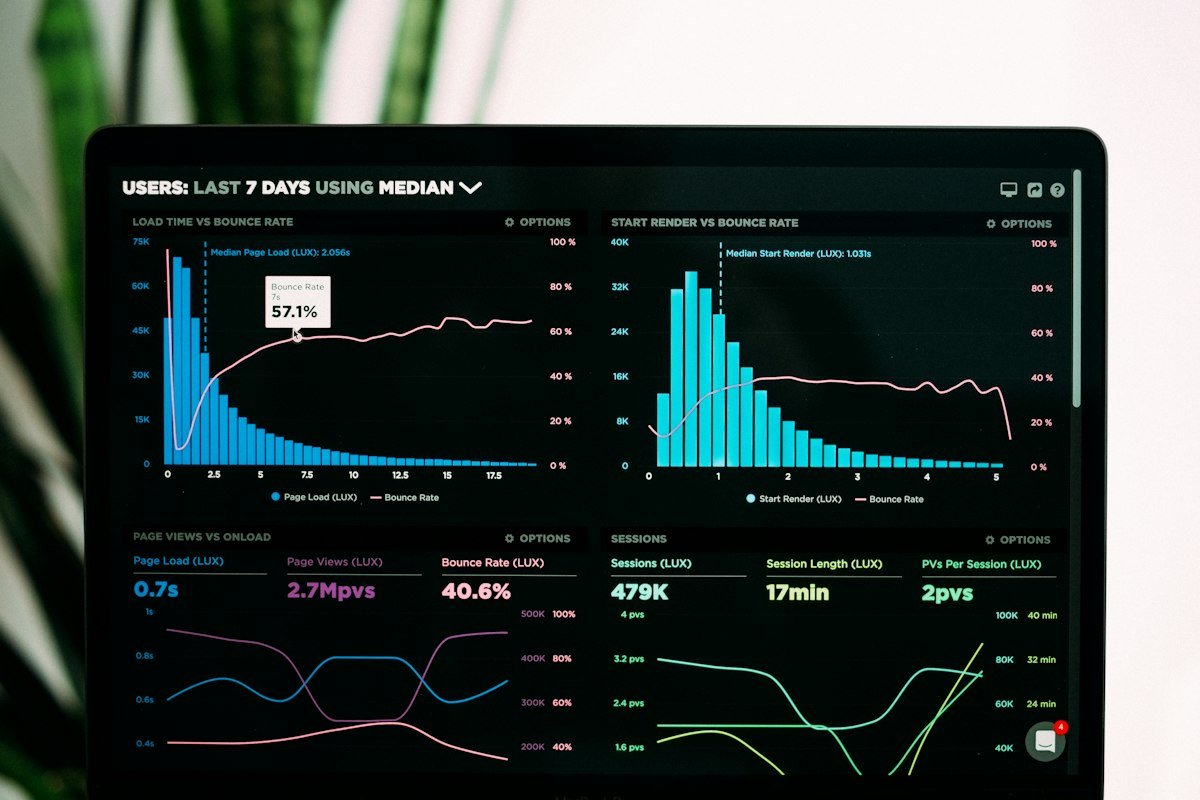
Resize images to the size they are shown at. Compress them. Convert them to WebP, which is much smaller than JPEG or PNG at the same quality. A good image plugin can do this on upload and convert older images in bulk. Then enable lazy loading. Images below the fold will load only when a visitor scrolls near them.
How to convert to WebP safely
Back up your media library first. Then convert in small batches. Check your key pages after each batch. Look for missing images or broken layouts. Set width and height for images, so the browser reserves space and the layout does not shift. This one step also improves your CLS score.
Cut the Bloat: Plugins, Themes, and Database
Every plugin adds code. Some add a lot. I audit plugins on every speed job, and I almost always find waste. The same is true for themes and databases. A lean site is faster, easier to maintain, and less likely to break.
Plugin audit in 15 minutes
List your plugins. Ask one question for each one: does it earn its place? Delete plugins you no longer use. Replace a heavy plugin with a lighter one. Look for two plugins doing the same job. Also look for heavy scripts that load on every page, for a feature used on one page. A contact form, a slider, and a chat widget can each add hundreds of kilobytes if you pick the wrong ones.
Keep the plugins you keep updated. Test the site after each removal. Check your forms, menus, and checkout. If a feature breaks, you will know which plugin caused it.
Lightweight themes and Elementor
Your theme sets the speed limit for your site. A heavy, multipurpose theme loads code you never use, even on a simple page. I prefer a lightweight theme. I add only the features a site needs. If you use Elementor, keep it lean too. Use fewer nested sections. Avoid a widget for every small effect. Do not add three animation plugins on top of it.
Elementor can build a fast site with discipline. But it can also create heavy pages full of effects and large images. Test a typical Elementor page. Look at the JavaScript it loads. Remove the add-ons you do not need. Speed is a design choice, not just a plugin setting.
Database cleanup
Your database grows quietly. Revisions, spam comments, and expired transients add rows over time. After a year or two, queries take longer. Clean it with a trusted plugin or a tool from your host. Remove old revisions, spam, and expired transients. First, take a backup. I never clean a database without one. On older sites, this removes a hidden drag on every page load.
When to hire a WordPress speed optimization service
Some sites need expert help. Hire a WordPress speed optimization service if your score stays low after caching and image fixes, if your store loses sales on busy days, or if you do not have time to test each change safely. A good service will find the exact bottleneck, not just install more plugins. Ask what they will test, what they will change, and how they will prove the gain.
CDN and Hosting to Speed Up WordPress Website
A content delivery network, or CDN, stores copies of your files on servers around the world. A visitor in another country then downloads images and code from a server close to them. That cuts travel time and load on your server. Cloudflare is a good starting point for most small sites. Many hosts offer a CDN too.
Hosting matters just as much. Cheap shared hosting can be slow at peak times, even with good caching. A CDN will not fix a slow server or a bloated page, so use it after the steps above, not instead of them. Together, caching, images, and a CDN give you steady speed for visitors everywhere.
Key Takeaways
- Measure first: test with PageSpeed Insights and note your Core Web Vitals.
- Cache and compress: caching and WebP images give the biggest gains for most sites.
- Cut bloat: remove unused plugins, keep your theme light, and clean your database.
- Use a CDN: it helps visitors far from your host, after the core fixes are done.
- Test monthly: speed slips back when new plugins and large images creep in.
Frequently Asked Questions
How can I speed up WordPress website performance for free?
Start with free wins. Turn on caching, compress images, convert them to WebP, and remove unused plugins. These steps cost little or nothing. They often lift a score by 10 to 20 points.
What is a good PageSpeed score?
A score of 90 or above is good. A score of 50 to 89 needs work. A score below 50 needs urgent fixes. Focus on mobile first, because most visitors use a phone.
Will a CDN alone fix my slow site?
No. A CDN helps with distance and load, but it cannot fix large images, heavy plugins, or slow hosting. Fix caching and images first. Then add a CDN.
Does image optimization really make a difference?
Yes. Images are often the largest part of a page. WebP and compression can cut image size by 30% or more. That often cuts total page size by a large amount.
Conclusion
A 90+ PageSpeed score is realistic for most WordPress sites. To speed up WordPress website performance, measure first, fix caching and images, cut the bloat, and then add a CDN. Check your score each month and fix small problems early. If your site is still slow after these steps, I can help. I offer WordPress speed optimization for business sites and WooCommerce stores. Contact me for a free quote and tell me your URL and your current PageSpeed score. What is your score today?
References / Sources
- Google, PageSpeed Insights — pagespeed.web.dev
- Think with Google, “53% of mobile site visits leave a page that takes longer than three seconds to load” — thinkwithgoogle.com
- Portent, website speed and conversion rate research — portent.com
- Google Developers, Core Web Vitals — web.dev/articles/vitals
- Cloudflare, “What is a CDN?” — cloudflare.com